RenderRoom
RenderRoom allows you to create realistic scene environments for generating high-quality product visuals.
It enables you to place products inside customizable room settings for enhanced presentation and virtual staging.
Step 1: Open RenderRoom
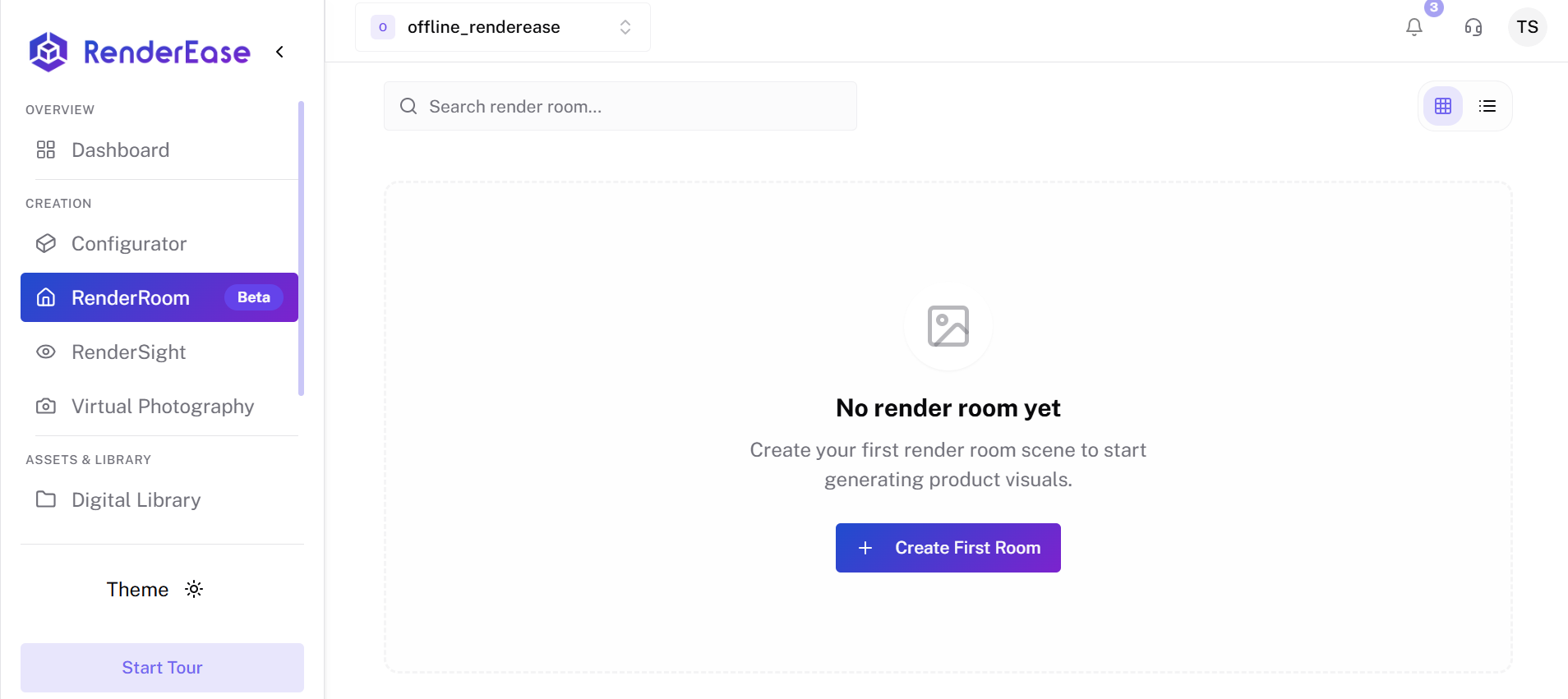
- Navigate to RenderRoom from the left sidebar.
- If no rooms have been created yet, you will see the empty state screen.
- Click Create First Room to begin.
Step 2: Create a New Render Room Project
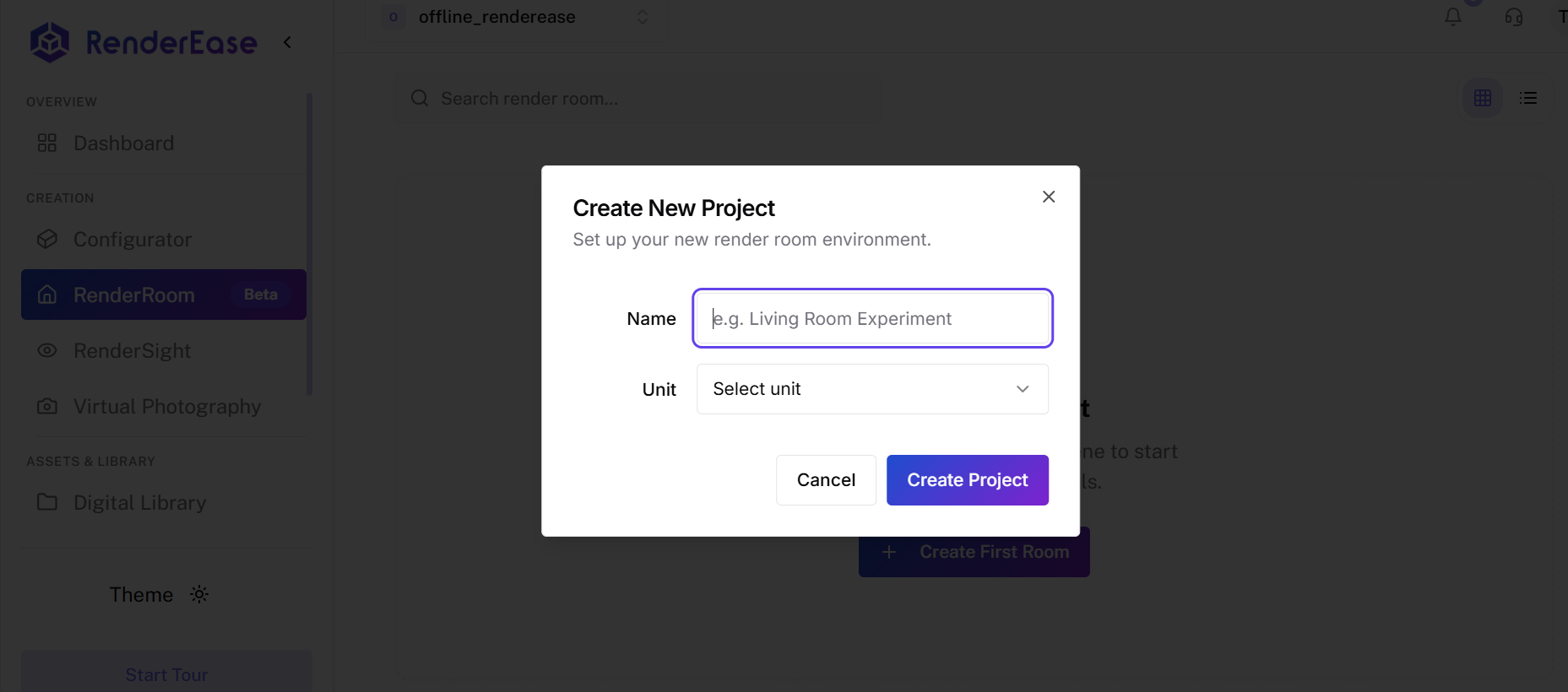
After clicking Create First Room, a modal will appear.
- Enter a Project Name
(Example: Living Room Setup, Studio Scene, etc.) - Select the Unit for measurements.
- Click Create Project.
This will initialize a new RenderRoom environment.
Step 3: Room Successfully Created
Once created:
- The room environment is initialized.
- You can begin adding products or scene elements.
- Modify layout, lighting, and staging as required.
- Generate realistic product visuals from your configured setup.
What You Can Do in RenderRoom
RenderRoom enables you to:
- Create realistic interior environments
- Stage products inside contextual room setups
- Generate high-quality lifestyle visuals
- Improve product presentation for marketing and eCommerce
RenderRoom helps bridge the gap between standalone 3D models and real-world visual presentation.