Digital Library
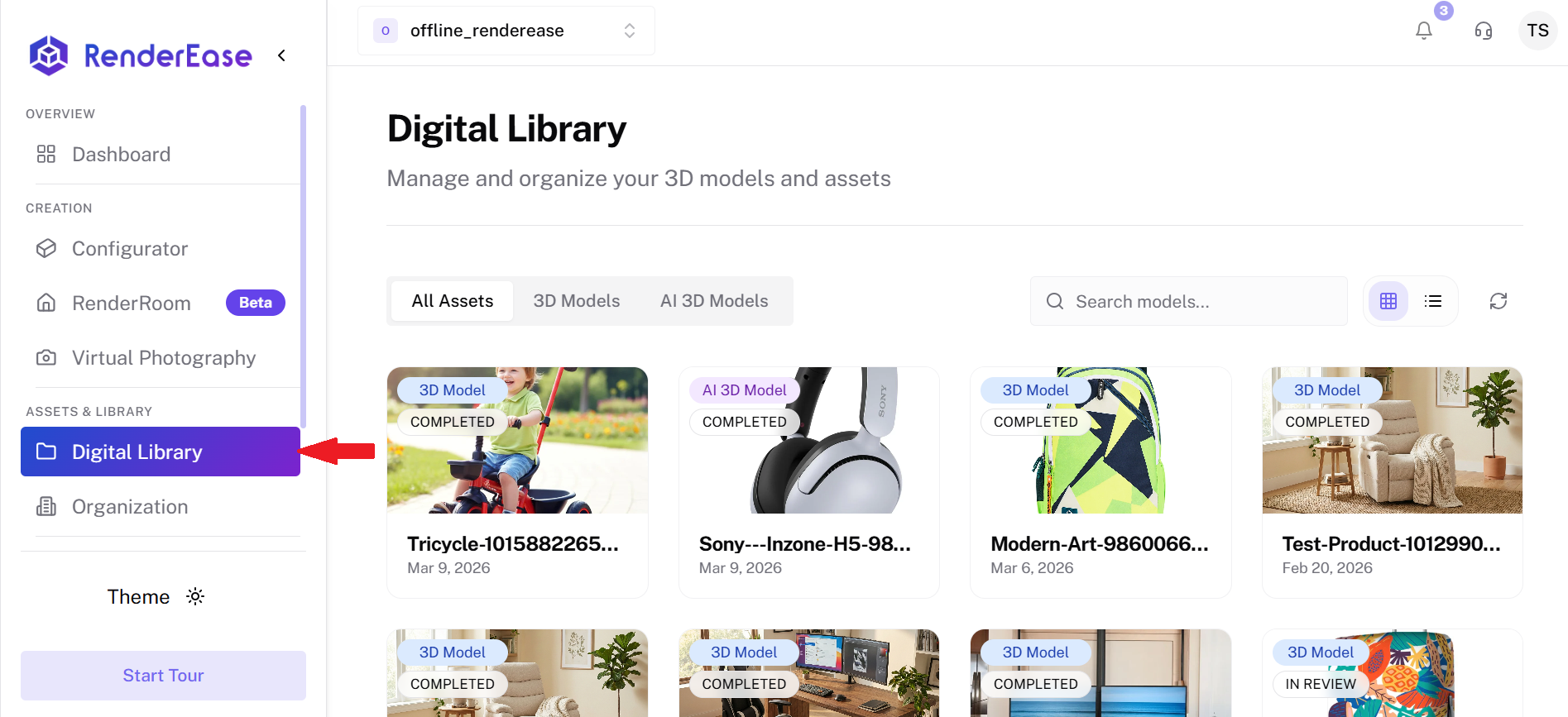
The Digital Library is the central repository for managing all 3D assets and models within the platform.
It allows users to upload, organize, preview, and manage product assets before using them in other platform tools such as Configurator, RenderRoom, and Virtual Photography.
The Digital Library acts as the asset management hub for all interactive product experiences.
Asset Categories
The Digital Library organizes assets into different categories for easier navigation.
All Assets
Displays every asset stored in the library.
3D Models
Shows all uploaded standard 3D models used for product visualization.
AI 3D Models
Displays models generated using AI-based 3D model generation tools.
These filters help users quickly locate specific assets.
Asset Cards
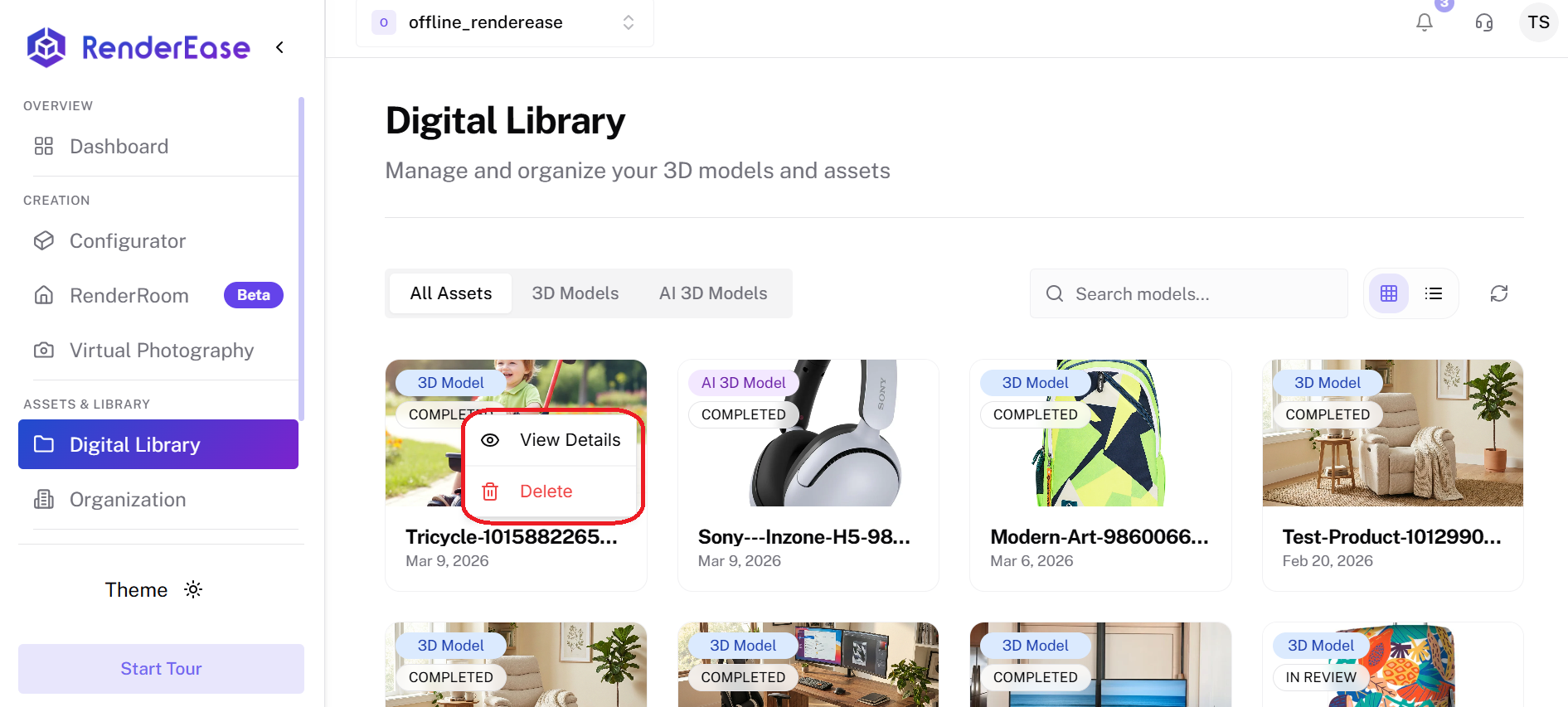
Each asset appears as a card view containing key information about the model.
Asset cards include:
- Asset preview image
- Asset type (3D Model / AI 3D Model)
- Processing status
- Asset name
- Creation date
Clicking the three-dot menu on an asset provides additional actions.
Available Actions
View Details
Opens the detailed asset page where users can inspect the model and related resources.
Delete
Permanently removes the asset from the Digital Library.
Asset Details Page
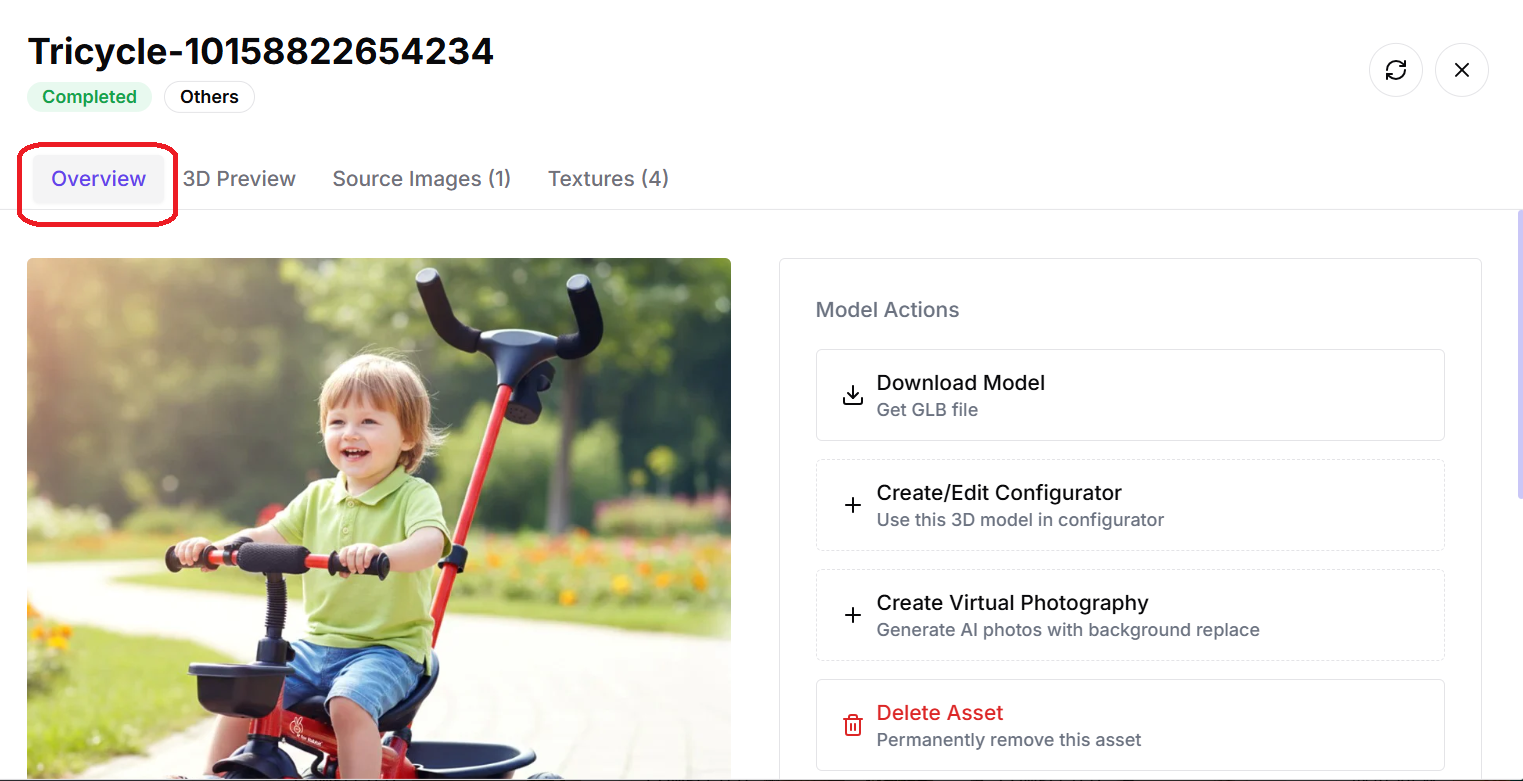
The Asset Details page provides a comprehensive view of the selected 3D asset.
This page includes:
- Model preview
- Asset name and status
- Model action controls
- Access to additional asset resources
Model Actions
Users can perform several actions from this page.
Download Model
Download the 3D model as a GLB file.
Create/Edit Configurator
Use the asset inside the Configurator tool to build product configuration experiences.
Create Virtual Photography
Generate AI-powered product images using background replacement.
Delete Asset
Remove the asset permanently from the platform.
3D Model Preview
The 3D Preview feature allows users to inspect the generated 3D model directly inside the Digital Library.
Users can:
- Rotate the model
- Zoom in or out
- Inspect model geometry
- Verify model quality
This preview helps ensure the model is ready before using it in configurators or renders.
Model Processing Status
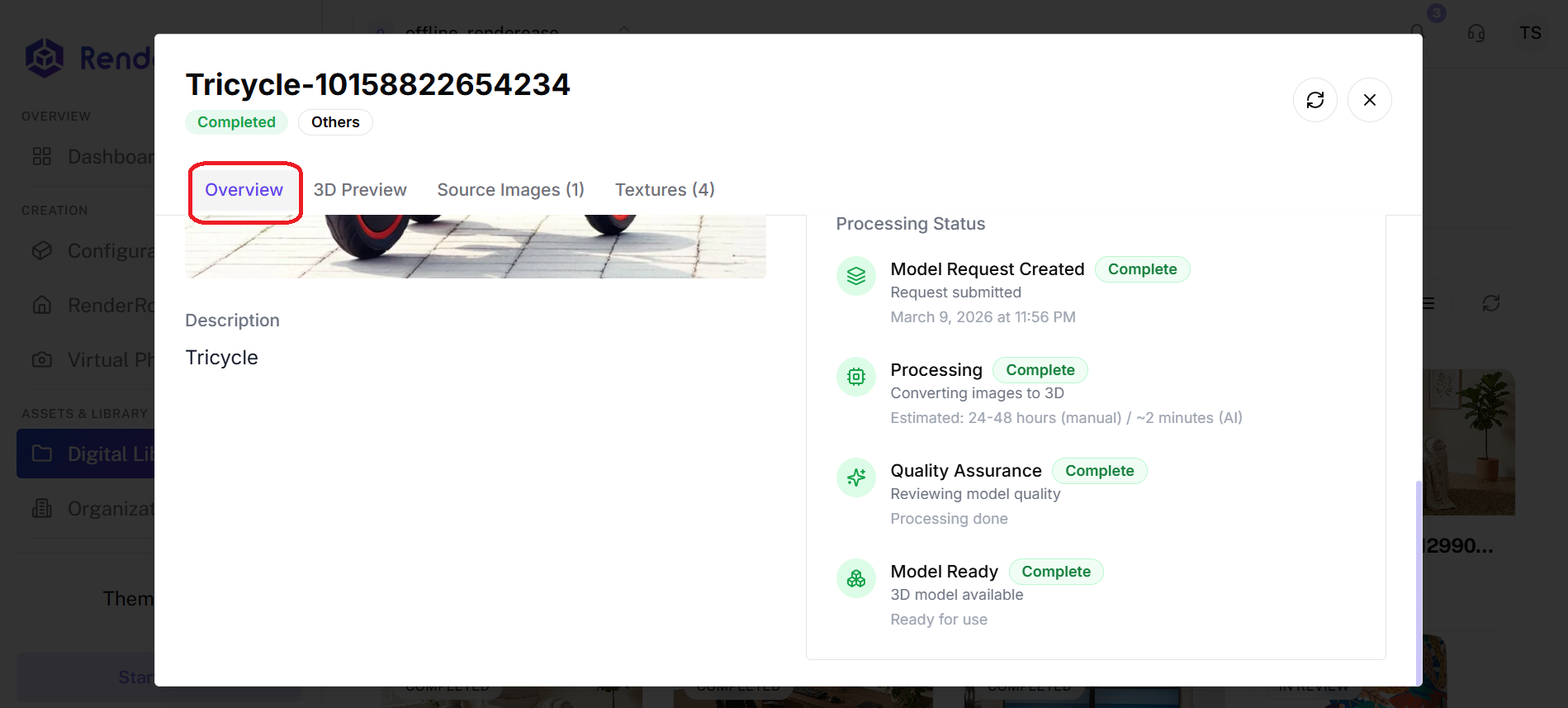
Each asset displays a processing workflow that shows the progress of the 3D model generation pipeline.
Typical stages include:
Model Request Created
The system registers the model request.
Processing
The platform converts uploaded images into a 3D model.
Quality Assurance
The generated model undergoes a quality validation process.
Model Ready
The model is finalized and ready for use.
This workflow ensures that models meet quality standards before being made available.
Source Images
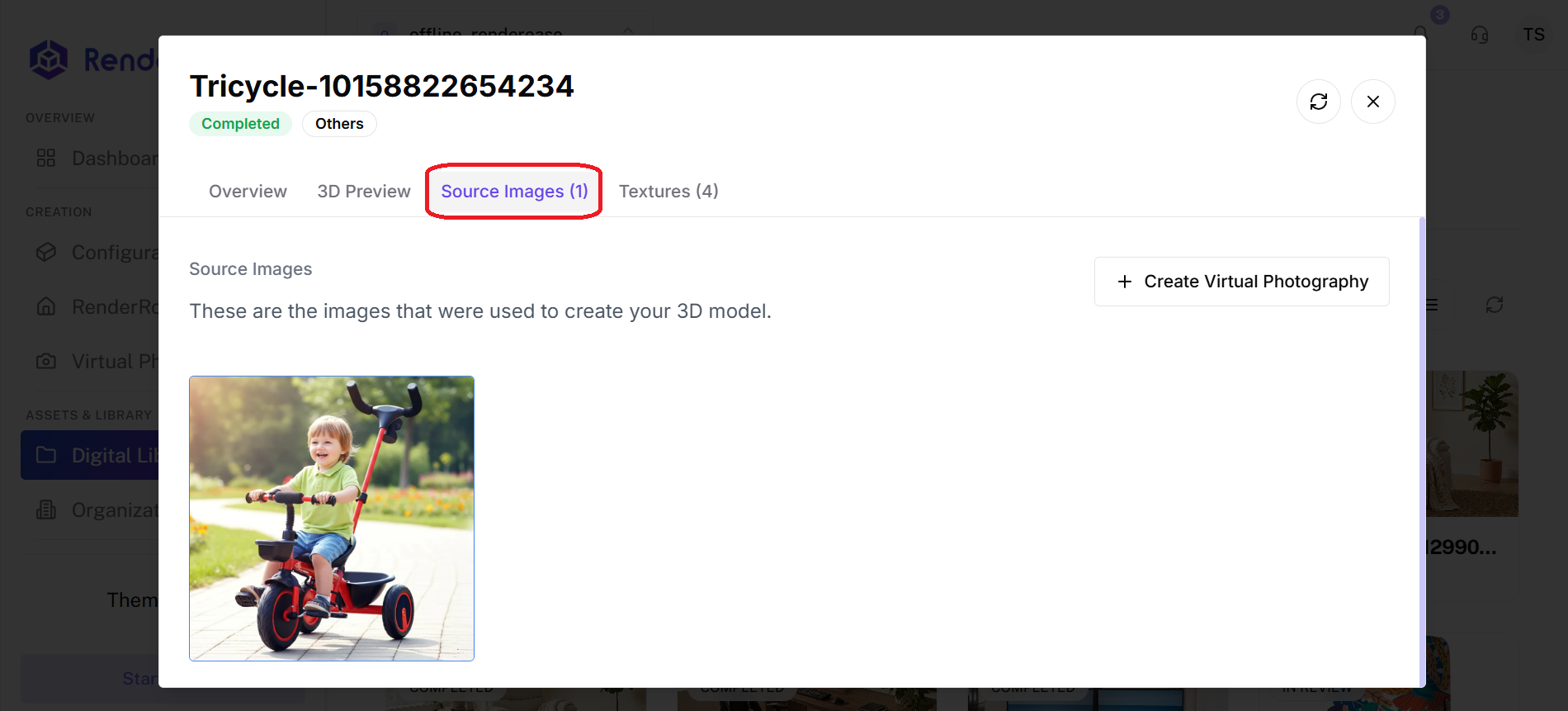
The Source Images tab displays the images used to generate the 3D model.
These images serve as the input data for the model creation process.
Users can:
- View uploaded images
- Add more source images
- Generate Virtual Photography from these images
Textures
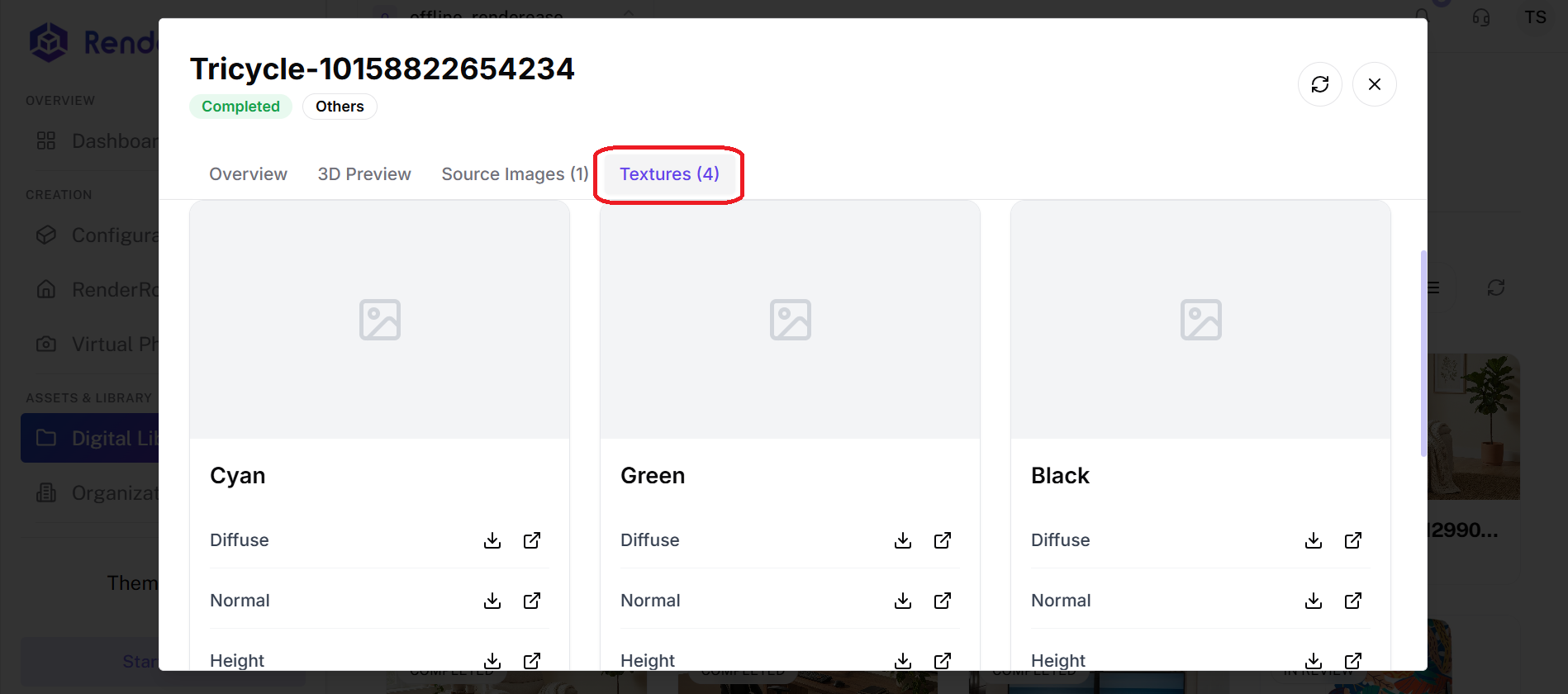
The Textures tab shows the texture maps associated with the model.
Texture maps define how surfaces appear when rendered.
Common texture types include:
Diffuse Map
Defines the base color of the surface.
Normal Map
Adds surface detail without increasing model geometry.
Height Map
Creates depth and surface variation.
Users can download these textures for further editing or rendering workflows.
Search and View Options
The Digital Library provides tools for managing large asset collections.
Search
The search bar allows users to quickly locate assets by name.
View Modes
Users can switch between:
- Grid View – Visual card layout
- List View – Structured list layout
Refresh
Reload the asset list to display the latest updates.
Summary
The Digital Library provides a complete environment for managing 3D assets within the platform.
It enables users to:
- Organize and store 3D models
- Monitor model processing status
- Inspect source images and textures
- Preview models in 3D
- Reuse assets across multiple platform tools
By centralizing asset management, the Digital Library simplifies the workflow for building interactive 3D product experiences.