Custom 'View in 3D' Button
If you want to use a custom "View in 3D" button in replacement of the existing default button, you can do so by adding a specific code snippet to your Shopify theme.
This allows you to place the button anywhere on your product page and style it according to your store's design.
Adding the Custom Button
Place the following liquid code snippet where you want the custom button to appear on your product page. The check in the snippet ensures that the "View in 3D" button shows only in those Product Detail Pages (PDPs) where the configurator is present:
{% if product.metafields.renderease.product_settings.value.status == true %}
  <button id="my-custom-renderease-trigger" class="button">
    View in 3D
  </button>
{% endif %}
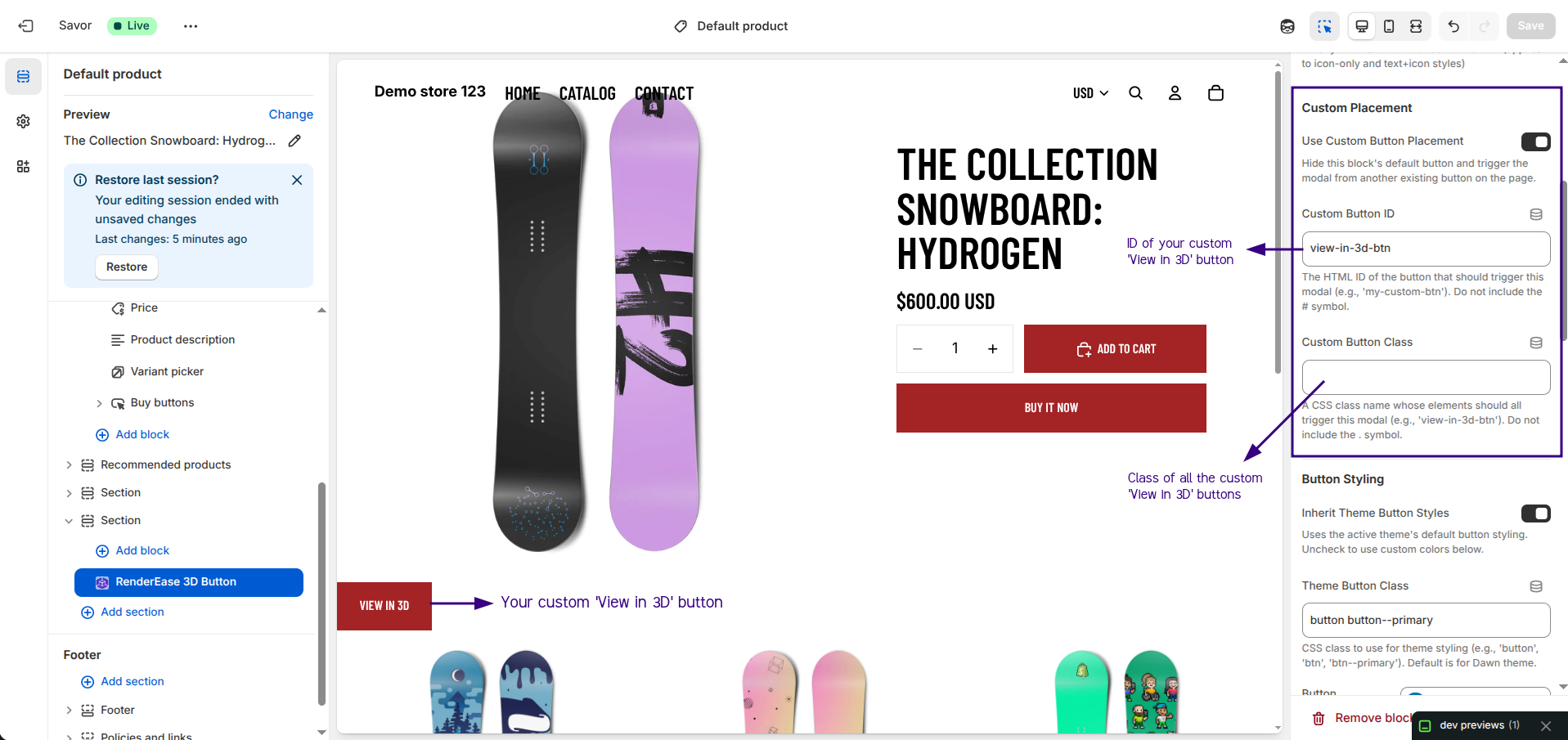
To make the app recognize your custom button, enable the Use Custom Button Placement toggle in the theme extension customization panel. Then fill in one or both of the following fields:
- Custom Button ID — The HTML
idof the button that should trigger the modal (e.g.,view-in-3d-btn). Do not include the#symbol. - Custom Button Class — A CSS class name whose elements should all trigger the modal (e.g.,
view-in-3d-btn). Do not include the.symbol.
You can use either field on its own, or both together. Once configured, the default RenderEase 3D button will disappear, and the 3D viewing functionality will be completely handled by your custom button(s).
How ID and Class Targeting Works
The app processes button targeting in two independent steps:
- ID block runs first — finds the single element by ID and attaches a click listener to it.
- Class block runs independently after — finds all elements with that class and attaches click listeners to each of them.
If both fields are filled, the ID-targeted button and all class-targeted buttons will open the same modal. There is no deduplication — if the button targeted by ID also happens to have the specified class, it will get two click listeners attached (both calling the same openModal function). In practice this is harmless since opening an already-open modal is a no-op, but it's worth being aware of.
When the modal is closed, focus will always return to the ID button (since that is checked first in the closeModal function). Keep this in mind if you are using both an ID and a class to target buttons.