Opening the Viewer
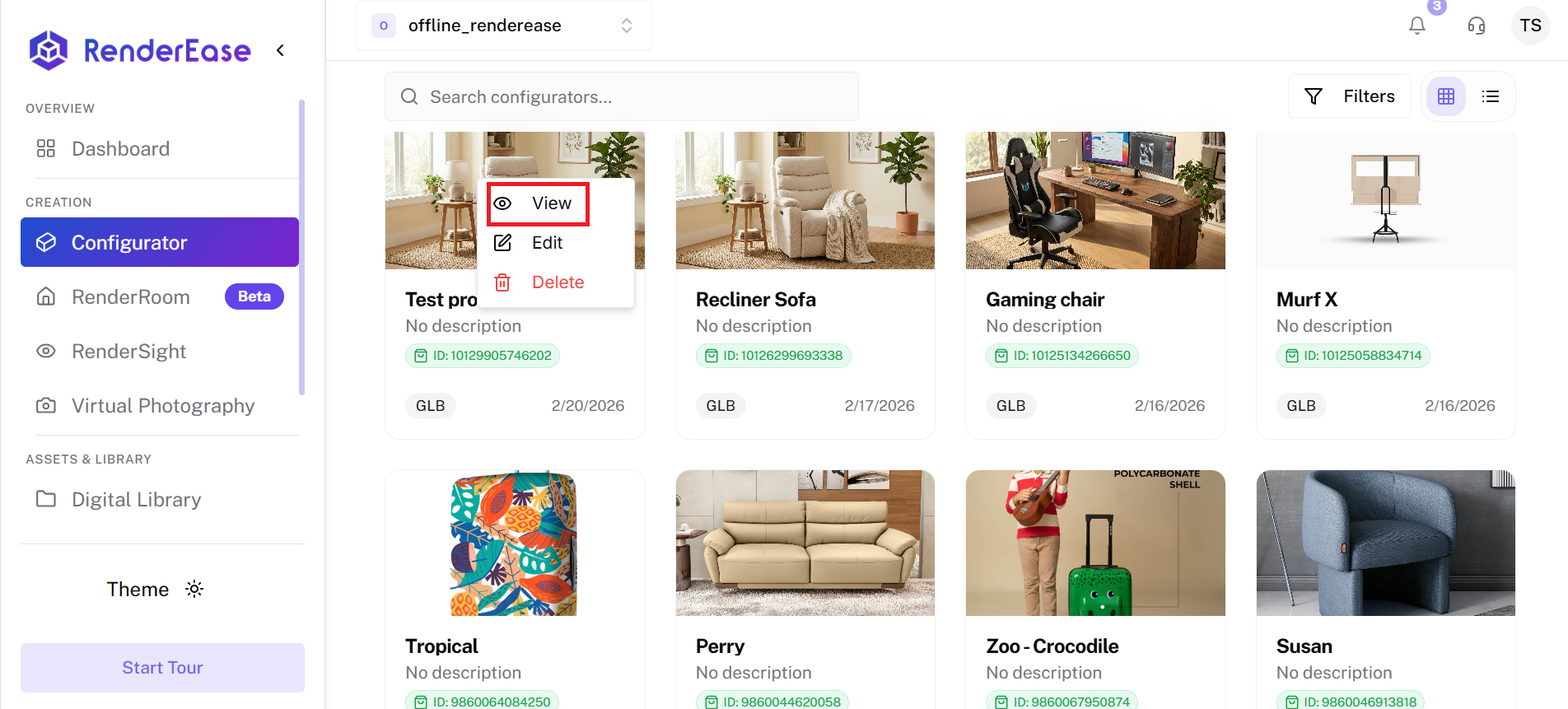
To open the Configurator Viewer:
- Navigate to the Configurator section.
- Locate the configurator card you want to preview.
- Hover over the card.
- Click the three dots (⋮) menu.
- Select View.
The selected configurator will open inside the interactive 3D viewer.
Screenshot
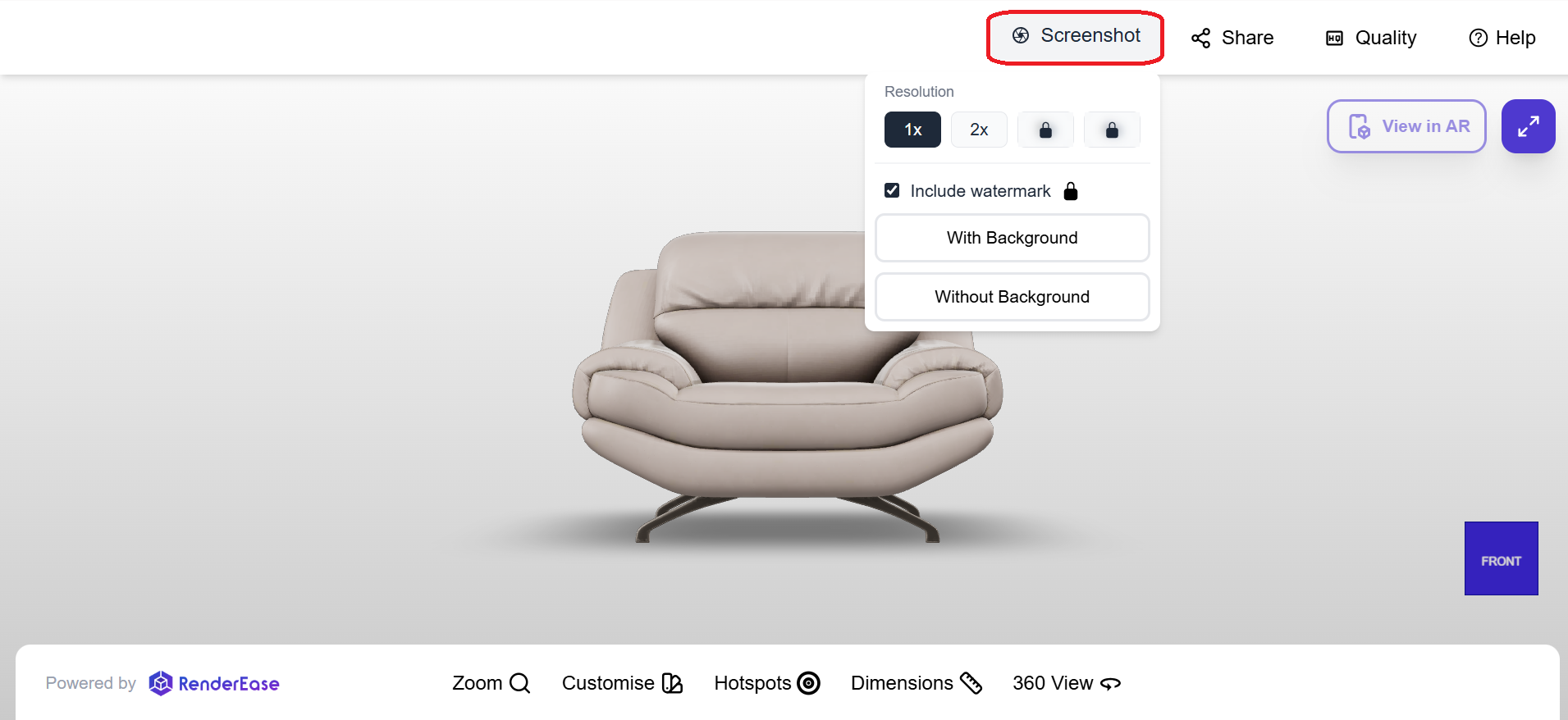
The Screenshot feature allows users to capture an image of the current view of the 3D model.
Users can customize the screenshot before capturing it by selecting options such as:
- Image Resolution – Controls the quality and size of the captured image.
- Include Watermark – Option to add a watermark to the exported image.
- Background Settings – Capture the model with or without the background.
This feature is useful for creating product visuals, documentation images, or sharing product views with others.
Share
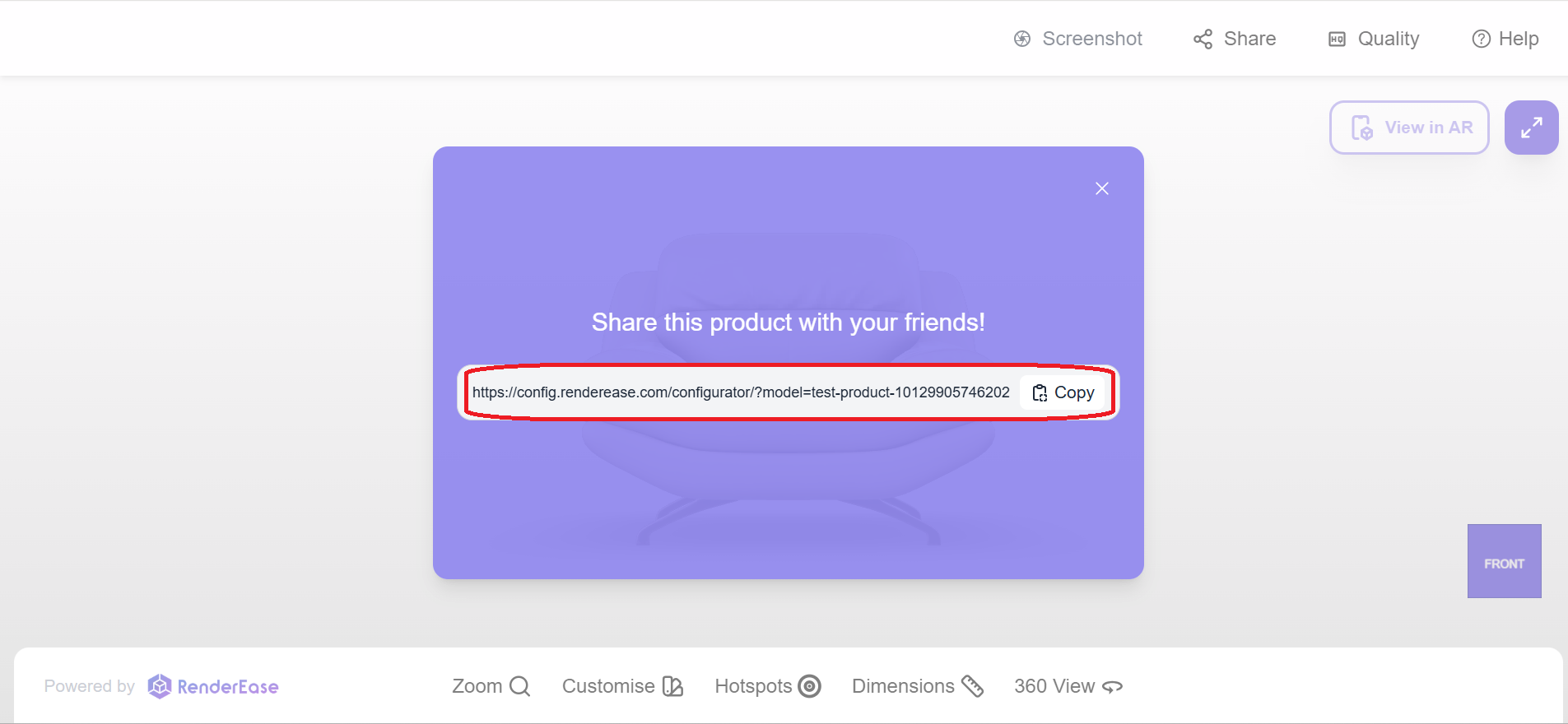
The Share option allows users to generate a shareable link to the configurator.
This link can be copied and sent to others, allowing them to open the viewer and interact with the same 3D product model.
This feature is commonly used for collaboration, product demonstrations, or sharing product configurations with customers.
Quality
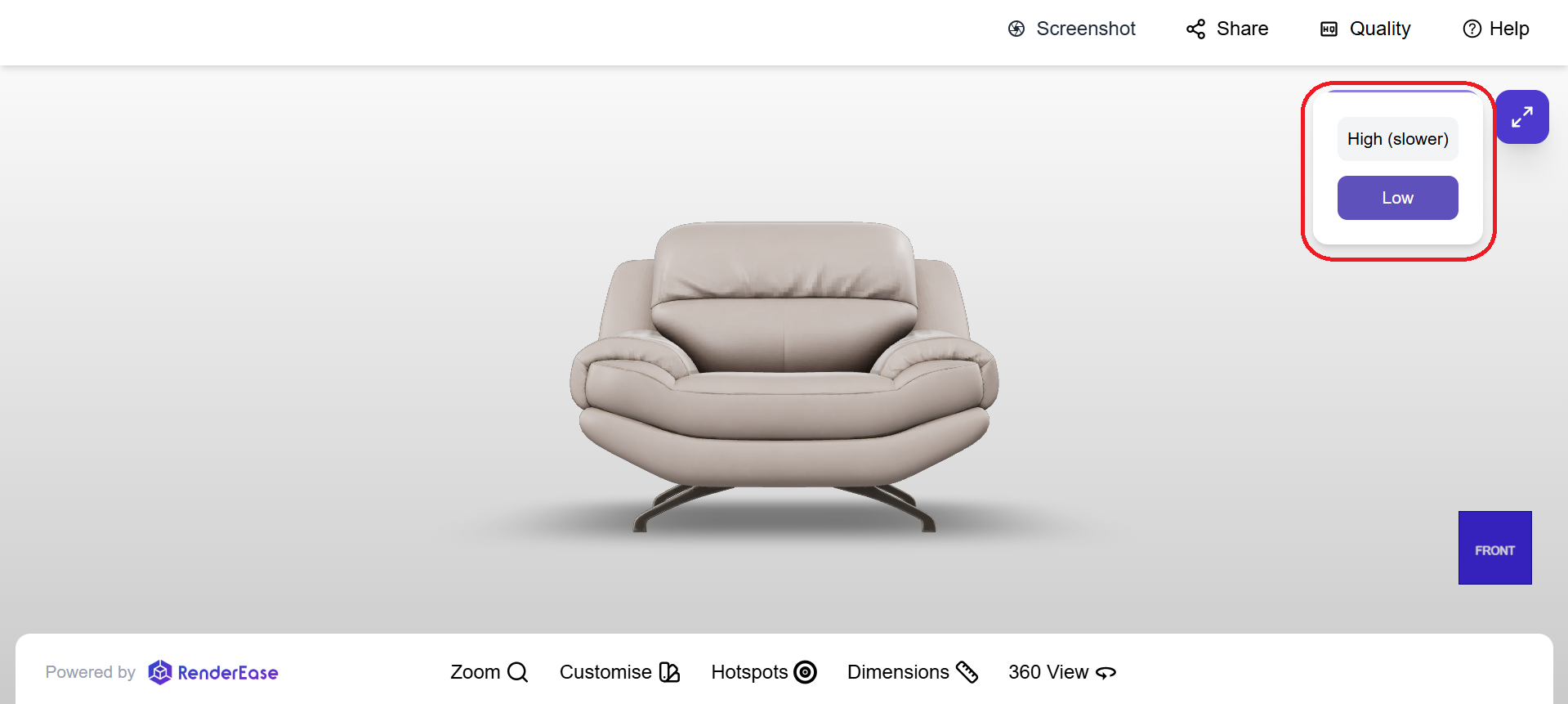
The Quality setting controls the rendering quality of the 3D model in the viewer.
Available options include:
- High – Provides better visual quality and more detailed rendering.
- Low – Improves performance and loading speed, especially on lower-powered devices.
This setting helps balance visual fidelity and performance depending on the user's device capabilities.
Help
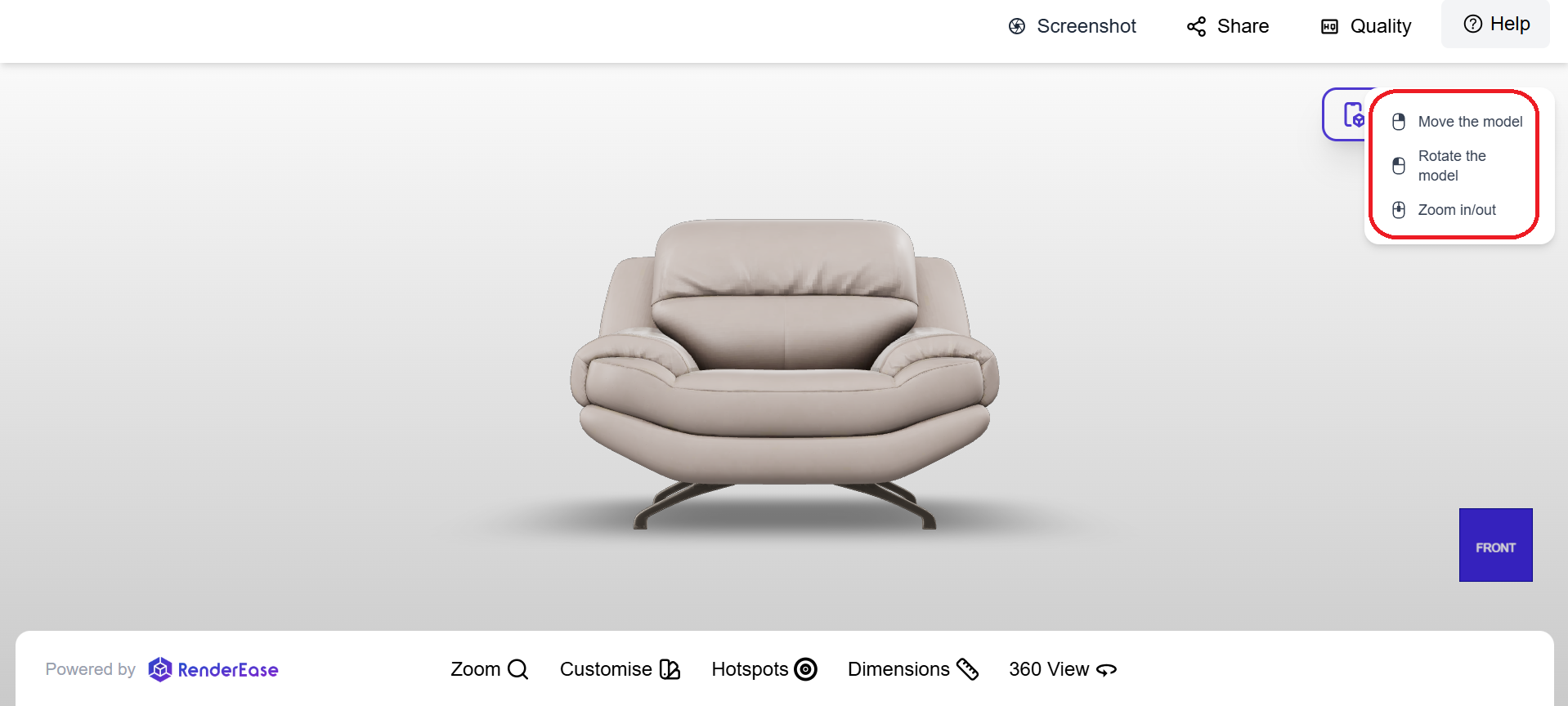
The Help option provides a quick guide for interacting with the 3D viewer.
It displays instructions for basic model interactions such as:
- Moving the model
- Rotating the model
- Zooming in and out
This helps first-time users quickly understand how to interact with the 3D model.
View in AR
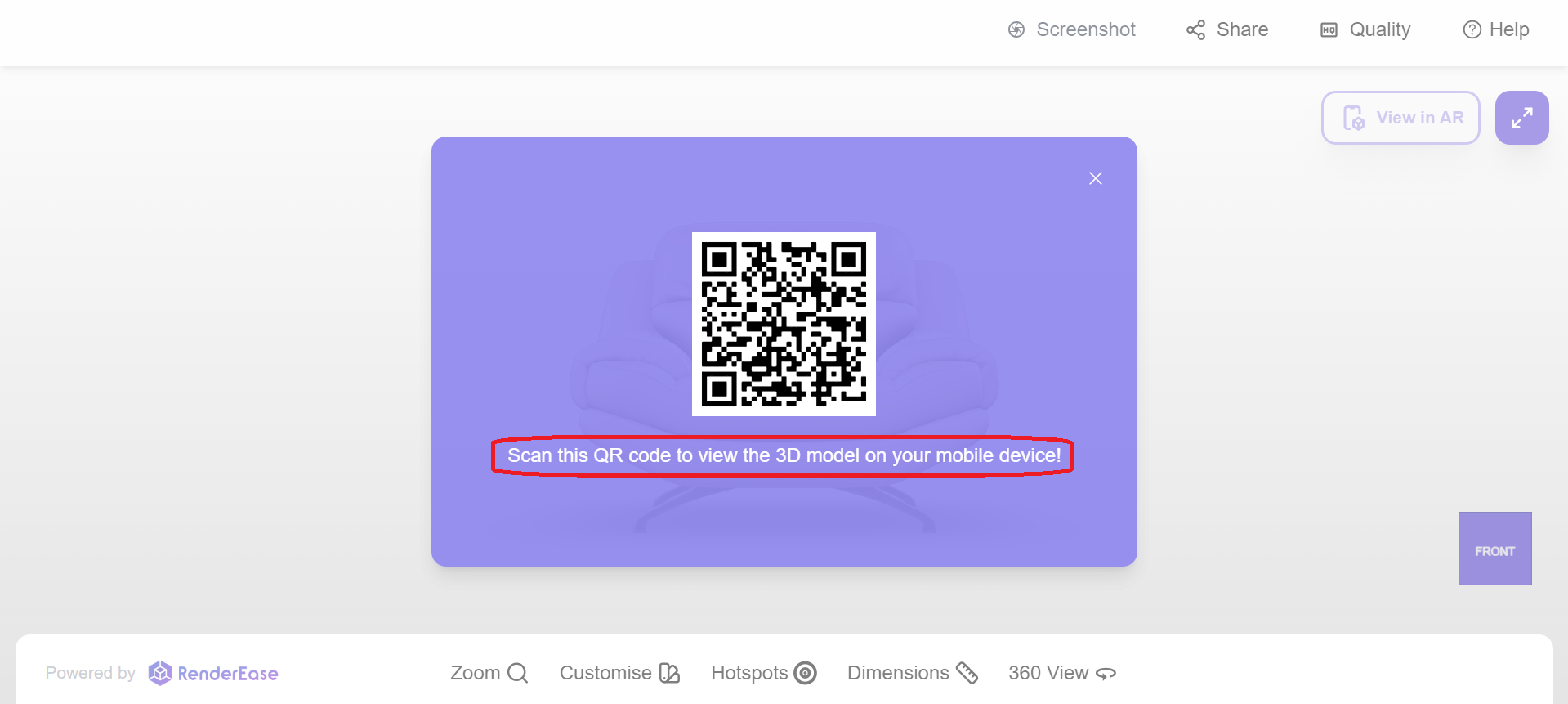
The View in AR feature allows users to visualize the 3D product in Augmented Reality on compatible mobile devices.
When this feature is selected, a QR code is generated. Users can scan the QR code using their mobile device to launch the AR experience.
This enables users to see how the product would appear in a real-world environment.
Fullscreen
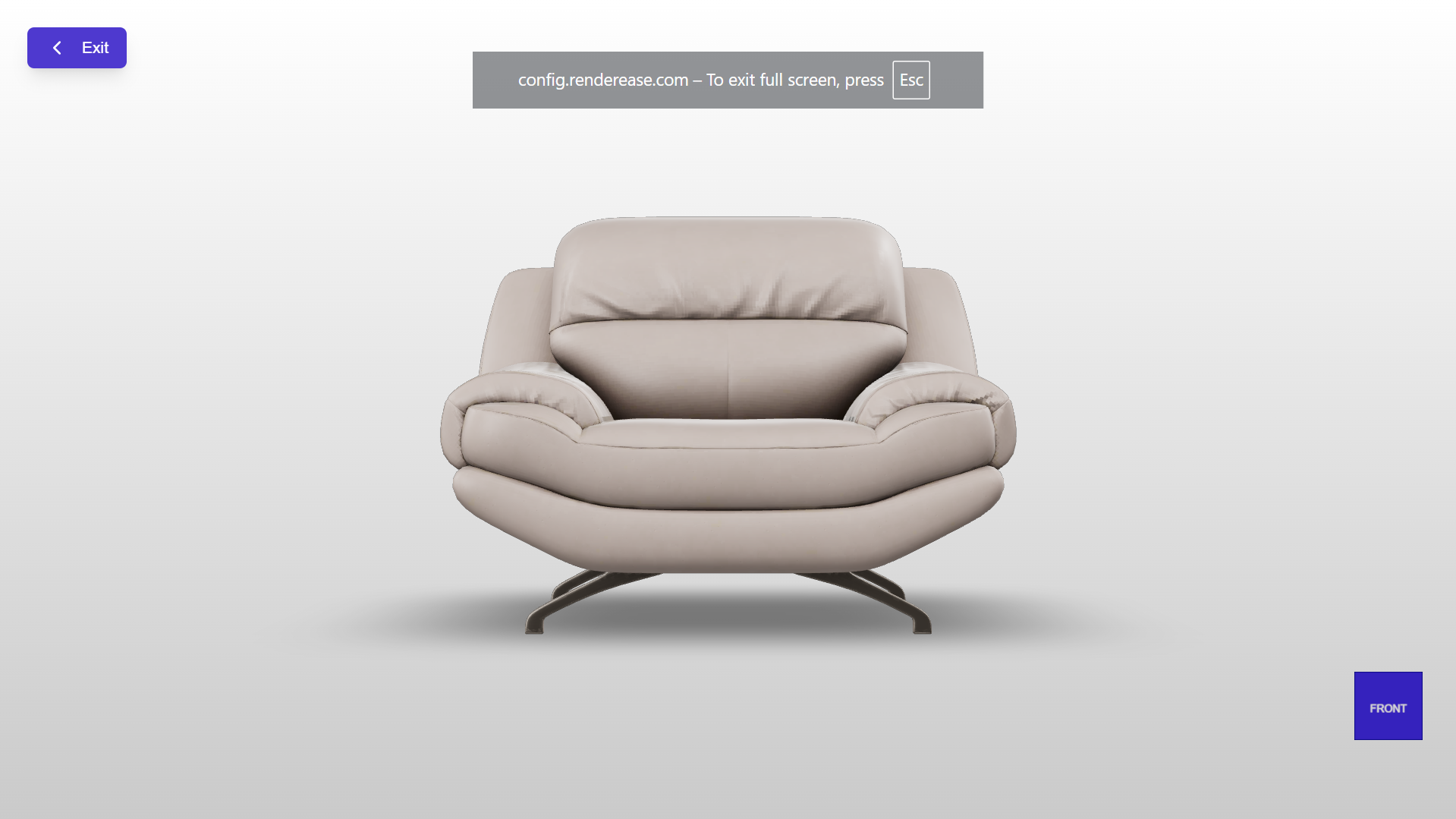
The Fullscreen option expands the viewer to occupy the entire screen.
This provides a larger viewing area and allows users to focus on the product without distractions.
To exit fullscreen mode, press the Esc key.
Zoom
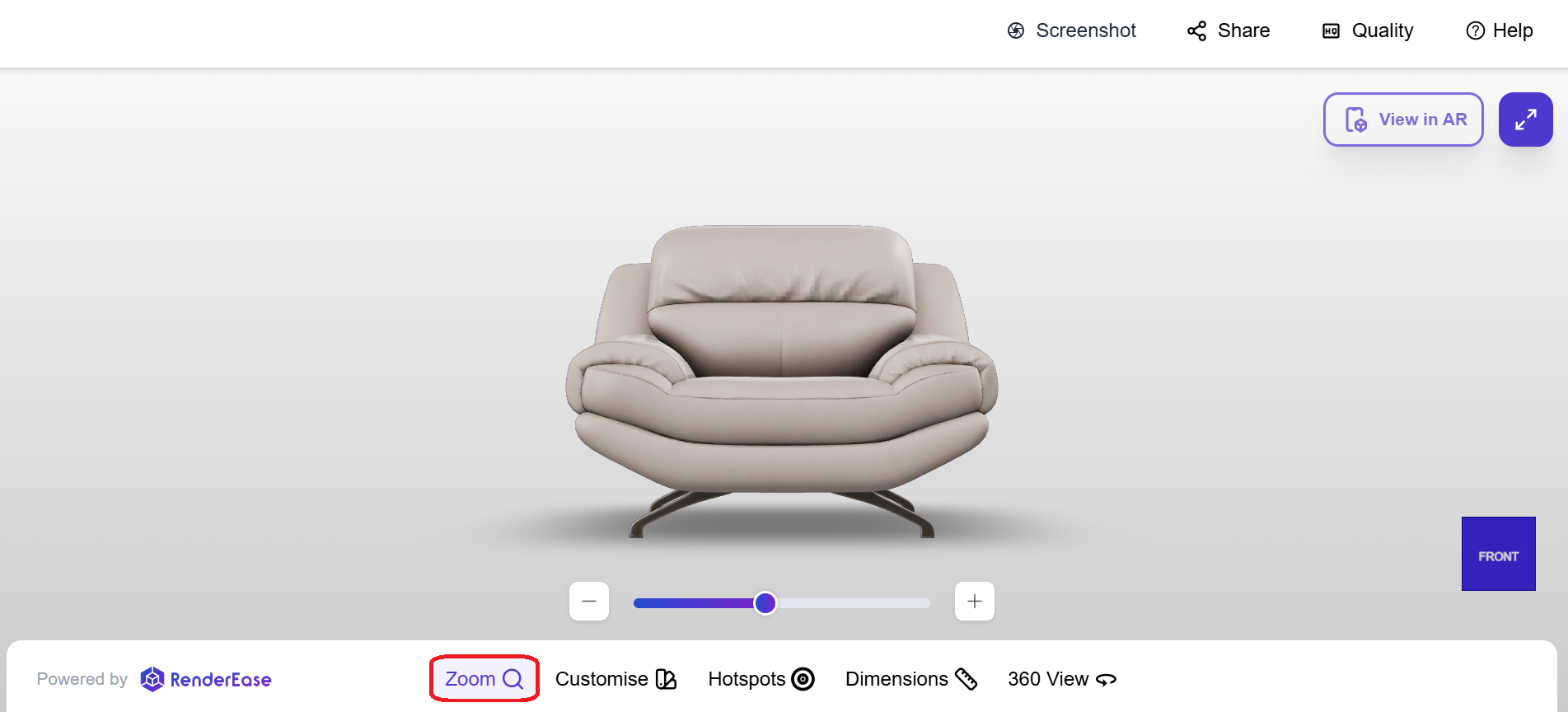
The Zoom feature allows users to zoom in or zoom out of the 3D model.
Users can adjust the zoom level using:
- The zoom slider
- Zoom control buttons
This allows users to closely inspect product details and textures.
Customise
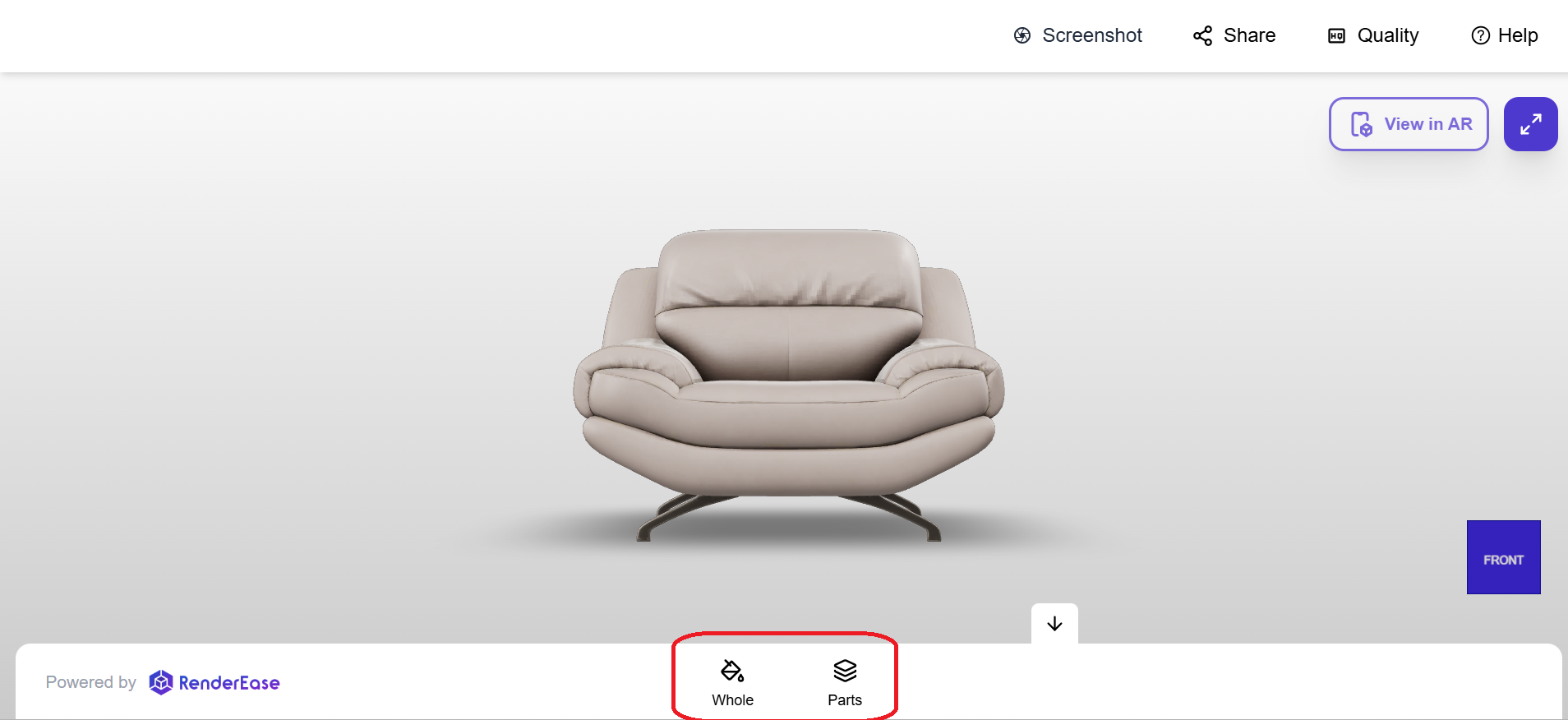
The Customise feature allows users to modify the appearance of the product by changing materials or parts.
Customization options include:
- Whole – Apply material changes to the entire model.
- Parts – Modify individual components separately.
This enables users to explore different product variations such as colors, materials, or finishes.
Hotspots
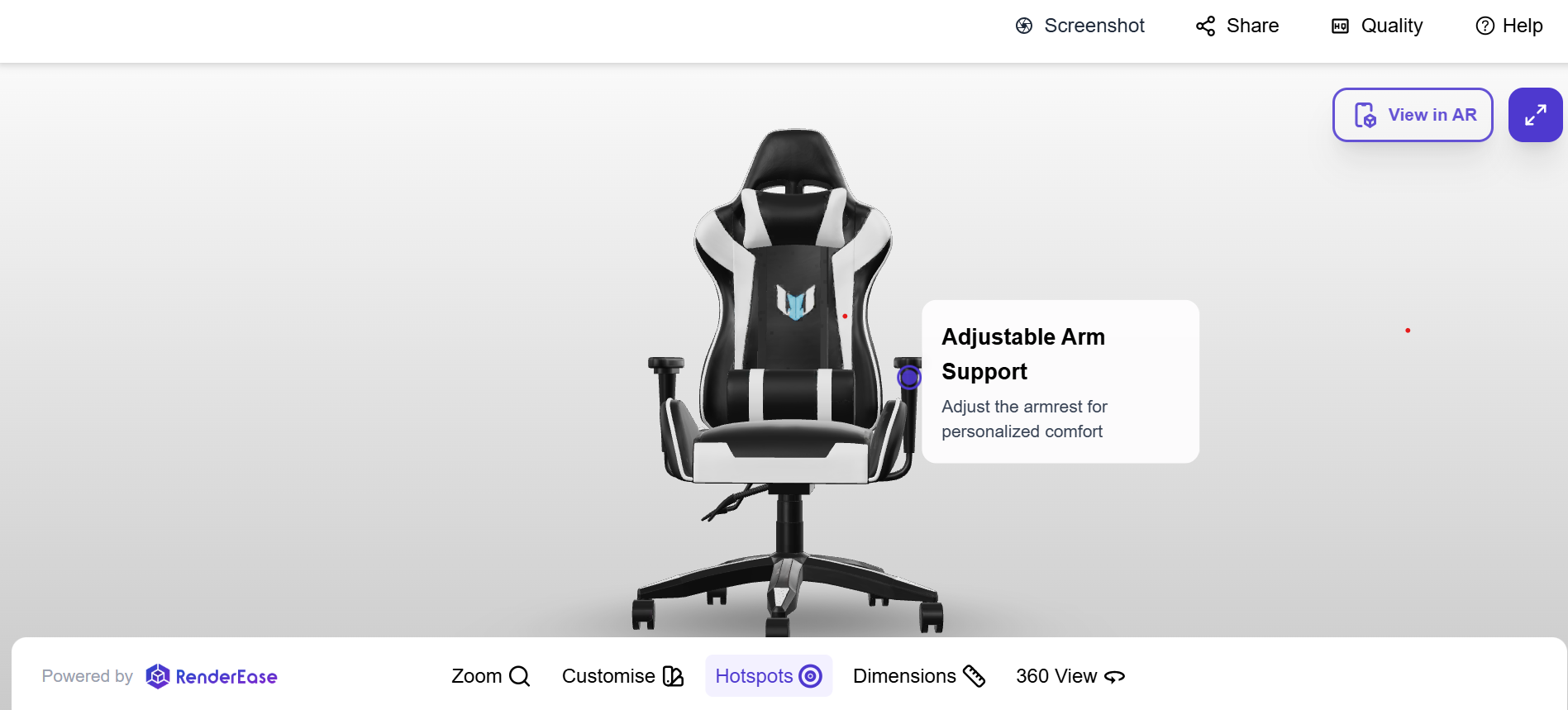
Hotspots are interactive markers placed on specific parts of the 3D model.
When a hotspot is clicked, additional information about that part of the product is displayed.
Hotspots are useful for highlighting:
- Product features
- Important components
- Key product details
This improves product understanding and enhances user engagement.
Dimensions
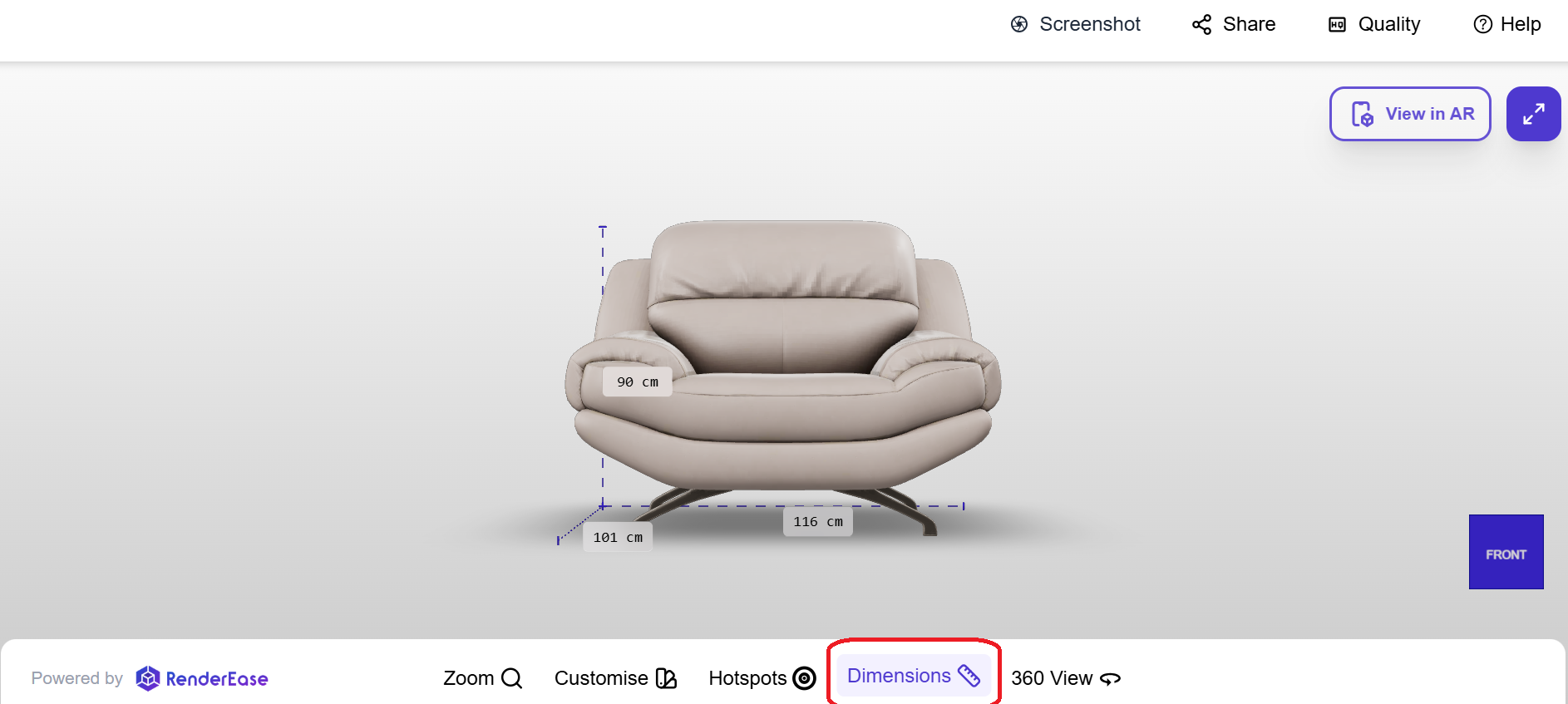
The Dimensions feature displays measurement overlays on the 3D model.
Users can view key measurements such as:
- Height
- Width
- Depth
This helps users understand the physical size and scale of the product.
360 View
The 360 View feature allows users to rotate and inspect the product from every angle.
Users can freely rotate the model to view all sides and explore the complete product design.